2009年3月15日星期日

Free PowerPoint Templates for Easter’s Day

Easter is observed on a Sunday between March 22 and April 25. It is a religious holiday that commemorates the resurrection of Jesus Christ three days after his death by crucifixion some 2000 years ago. For Christians, Easter is a day of religious services and the gathering of family.
For the year 2009, Easter Sunday celebrations fall on 12th April.
If you need to make some presentations for Easter day or make photo albums with PowerPoint for your family reunion, these free PowerPoint templates for Easter’s day hope would help you do better.


For more free PowerPoint templates for Easter’s day, you can click here.

After making your presentations, if you need to further convert your PowerPoint to video for viewing presentations on portable devices or website and burn PowerPoint to DVD for distribution or broadcasting, you can click here.

2009年3月13日星期五

How to Share your PowerPoint Presentations in Multiple Ways

Many of us make PowerPoint presentations, no matter it is for family use, business use or education use. But not lots of us know that there are multiple ways to share PowerPoint presentations. The most common way to send presentations to others may through email or put it on a server somewhere for access. You may also package your presentation to CD for the members using PowerPoint viewer only.
But what if you want to
-> Run a looping presentation on a kiosk or at a tradeshow where PC is not available
-> Send the presentation to people who may not have PCs
-> Burn the presentation onto a DVD disc for distribution
-> Et cetera…?

Then it becomes a harder work. So how can you exactly share your information in the PowerPoint presentation? Here are some solutions for you.
1. Turn the presentation into a video to view on portable devices or website
Video is a media which could be broadcasted through many players. It can display your presentations in a more vivid way. With PowerPoint in video format, it is easy for uploading to your own blog and websites. Even there is no PowerPoint installed computers, you can also view your presentations through iPhone, iPod and all kinds of media player.


If take full advantages of PowerPoint, product advertisement can also made with it. Then with the PowerPoint product advertisement in video format, you can upload it to websites for more people to get familiar with your products.
As to the tools that can help convert a PowerPoint presentation to video, there are many programs out there. Unfortunately, I haven’t tried all of these. But here is one that looks promising. Although it is not free, if it does what you want it is worth looking into: PPT2Video Converter. For more ways about how to convert PowerPoint to video, you can click here.

2. Save and store PowerPoint presentation in CDs for distribution or broadcasting
If you have made precious photo albums with PowerPoint, saving them onto a CD would be meaningful. Family genealogy and other interesting events can all be widely shared with other family members who have no PCs and stored for long term preserve.
Useful courseware made with PowerPoint can also be distributed to fellows and students after being burned to CD/DVD.
Besides, PowerPoint product advertisement if saved in CD, it is possible to be viewed on a kiosk or at a tradeshow when there is no PC.

For programs to burn PowerPoint to CD, there is always Camtasia that will turn a PPT into a video/audio presentation, then with another program to make the video/audio presentation into a DVD. But if just for the function of burning PowerPoint to DVD, there are some better choices such as these ones: http://ppt-to-dvd.com/ppt2dvd/overview.html ; http://ppt-to-video.com/powerpoint-to-dvd-overview.html .
If you want to learn more ways about how to burn PowerPoint to DVD, you can click here.

3. Convert PowerPoint presentations to web-accessible presentations
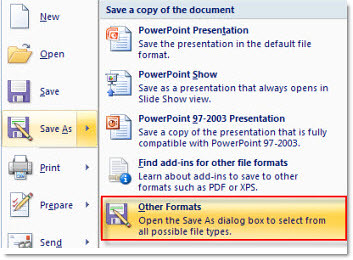
There are a lot of ways to do this. One of them is converting PowerPoint presentations to HTML version. Open your PowerPoint first, and then click Save As in the Office Button. In the drop-down menu of Other Formats, choose Webpage.


Another effective way to do this is to upload your PowerPoint to video sharing websites such as YouTube. For more notes about how to share PowerPoint on YouTube, you can click here.

The next time you want to share your PowerPoint with others, don’t bother too much then. Just take the above suggestions into consideration. And use PowerPoint to boom your sales if necessary.

2009年2月16日星期一

5 Ways to Convert PowerPoint to Video

Benefits of PowerPoint
PowerPoint is a powerful presentation application which is very commonly used by lectures, businessmen, students, trainers, etc. It is easy to use and featured with a lot of functions to create interesting and dynamic slide presentations. This has made it widely accepted and utilized.

Benefits of Video
Video is powerful because it’s demonstrative, clearly depicting procedures, techniques or visual information such as charts and graphs. Most of all, video showcases charisma of live images and animations, allows for transparency and communication skills, which can lead to trust. It is also a good idea to make videos for special occasions as a way of watching them and reminiscing the good times.

Benefits of converting PowerPoint presentations to video
-> Display your presentations in a more vivid way
-> With PowerPoint in video format, it is easy for uploading to blog and websites
-> Even there is no computer, you can also view your presentations
-> Videos can be uploaded to portable devices such as iPhone, iPod and Pocket PC

5 Ways to Convert PowerPoint Presentations to Video (free ways and cost-effective ways)
Method 1: Upload your presentations to http://www.slideshare.netwhich is one of the world’s largest communities for sharing presentations. It can generate video for your presentations.
After uploading your presentations onto it, you can directly download the generated video onto your own computer, or embed the video to your blog.

But there are limitations to the presentations uploaded to it. Max size of the presentation is limited to 100MB; animations, video clips and other complex elements couldn’t be added; PowerPoint 2007 is not supported. Sometimes, objects inserted into the presentation may be modified after the uploading.

Some other similar online PowerPoint sharing sites such as http://www.authorstream.com and http://www.slideboom.com/ also support generate video for the presentations uploaded. The advantage is that you don’t need to download any programs onto your computer and they are all free. If your presentation’s size is not too big, and there are only texts and pictures in your presentation, you can have a try at these sites.

Method 2: Use Camtasia which costs $299 to record your presentation and then generate a video
Step1: In the Task List, select Record PowerPoint.
Step2: Open a PowerPoint presentation to record.
Step3: Select the recording options from the PowerPoint Add-in Toolbar. Click the Record button.
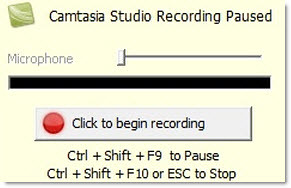
Step4: The presentation opens in presentation mode. A Camtasia Studio dialog opens in the lower right corner of the screen. Click the Click to begin recording button.

Step5: Progress through the PowerPoint presentation slides. To stop the recording before the last slide, press . To stop the recording at the end of the presentation, click Stop recording.
Step6: Enter a file name and location and click Save. The presentation recording saves as a Camtasia Studio recording file.
Advantages with this method: The program can capture slide timing, animations, sound effects, webcam video and any applications displayed on screen during the presentation. You can also record your own narration while the screen-capture process is being carried out.
Disadvantages: This program eats huge system resources. If the configuration of your computer is not so good, animations may become laggy or even lost.

Method 3: Convert PowerPoint presentation to video with Acoolsoft PPT2Video Converter
Step1: Download this PPT2Video Converter and install it on your computer.
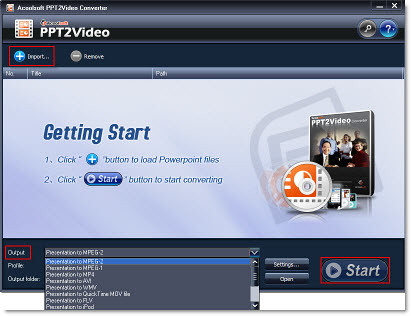
Step2: Launch the program. Click Import button to choose the presentation you want to convert, choose an output format for the video you want to generate. And then click Start button to start the conversion process. (This program can convert presentations to video in MPEG, AVI, MP4, WMV, 3GP, FLV and MOV.)

Step3: Upload the video to blogs or websites such as YouTube.

Method 4: Use Windows Movie Maker to create a video for your presentations
Windows Movie Maker comes with all Windows XP and Vista installed computers. With this method, it may time consuming and animations in your presentation would be lost after the conversion.
Step1: Save your PowerPoint slide show as “PNG” images.

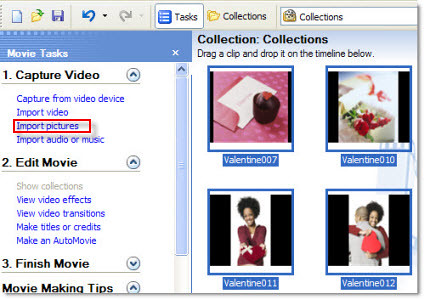
Step2: Import the images to your Windows Movie Maker.
Step3: Select all the imported images and then add them to Storyboard.

Step4: Add video effects to the slides (Optional)
Step5: Save the slide show as Movie File.

Method 5: Make a QuickTime movie on Mac
Export your presentation as a QuickTime movie “PowerPoint Movie”. Then you can save your presentations to MOV video file. Way to do this: click File -> Make Movie
But in this way, sounds and animations couldn’t be retained. If you are using keynote, just export your presentation to QuickTime file directly.

Take the advantages of PowerPoint and video. Convert your presentations to video. Share your presentation with more people and create a more convenient way to view your presentations.

2009年2月6日星期五

Valentine Gift Ideas for Your Beloved

Valentine's Day is a holiday celebrated by many lovers all over the world, what you plan to do as the Valentine's Day approaches? Presenting flowers, exchanging confectionery, or sending Valentine's cards? This exceptional day of lovers allows everyone to give out the most fascinating things and speak up the never expressed things. Here are some perfect valentine gift ideas and tips that you can make your beloved happy.


There are plenty of options to choose. But before selecting any gifts for your beloved online, you need to put a lot of creativity, thinking and time. A gift for your beloved should largely depend on the personality of the individual. A Valentine Gift that suits the personality of your beloved will be considered as ideal.
1. Choose chocolates
If you want to make a great impression for your sweetheart on this Valentine, not to mention the feeling of cheerful surprise as your beloved receives this special valentine gift. You can choose heart-shaped chocolate, select a very romantic card and add some sweet message in it, then wrap it up to send to your beloved. This chocolate gift idea for your sweetheart promises to make her love you forever.

2. Choose candy
Surprise your Valentine with a gem of a candy collection or candy gift baskets. Candy gifts come in various types and categories suiting your sweetheart's mood and taste, not to mention affordability because candy would not be too expensive. With the aid of the various candy stores you can also order for various types of decorative candy boxes for your beloved. You can gift your spouse with a special candy bouquet.

3. Choose flowers
The meaning and beauty of flowers has captured our imagination so much that even words cannot match its power when it comes to expressing love. The perfect choice of a Valentine flower is the red roses, distinctly expressing love in its eternal form. The single stem of a rose also called “signature rose” is the most preferred choice of most Valentine lovers. Red, pink and white roses are the most sorts after Valentine Flowers. Red rose symbolizes passion, white purity and the pink rose is a blend of both.
For more flowers information you can browser Proflowers and Flowerpetal

4. Choose jewellery
Jewellery doesn't mean that it has to cost you a lot especially during the period of economic recession. My guess is she must be having many pairs of earrings and chains. So why not gift her something that she might just have one or even none. Select a nice anklet from a nearby jeweler and gift to her as a Valentine gift, you can select from different styles for her. So indulge yourself in this season of love with some great valentine jewellery ideas. Let your sweetheart remember you with this special moment lock inside her heart forever.

5. Record your romantic stories
Valentine's Day is a golden chance of expressing your love to your beloved. You can make up for all the time lost with great romance collage. Considering paper ones are easily damaged, you can create PowerPoint with snaps to cherish the memory of your love of joy. Under each Slide you can write a specific thing about your sweetheart, like "I miss your smile", "I miss you ". It will be a big fortune for you both. Presenting a sincere romance story in such a way could be an ideal Valentine's Day gift idea even if valentine flowers are not attached with it. For long-time preserve you can convert the PowerPoint to video or DVD instead papers. Here is a sample from YouTube http://www.youtube.com/watch?v=IbrOSNsNUWo . Want to know how to do it? You can click here. Here are also some free PowerPoint templates.
Below is a DVD Menu of the tool.

These are just part of my ideas, do you have any more? Please show it to your sweetheart this Valentine's Day.

2009年2月5日星期四

Free Valentine's Day PowerPoint Templates

Here are some free PowerPoint templates for Valentine's day:


For more free ones, you can Click Here.

2009年1月15日星期四

Plasma TV Used in School

Today’s children are growing up surrounded by television and video. Visual media is already an essential component of classroom instruction. Especially in recent years, plasma TV sets have been installed in more and more schools with the support from different educational agencies.


These plasma TVs are mostly designed for use in presentations, dynamic messaging, training and teleconferencing. Teachers can present courseware through plasma TVs and also some other types of training material. Students can get the latest school news and view other students’ good job. Thus, contribute greatly to both the teaching process and the construction of campus culture. Students can learn in an innovative way, and school introduces a new way to communicate with students.

Plasma TVs are usually connected to a DVD player, VCR, HDTV decoder set-top box, external audio connections, gaming services, and a PC. In most conditions, school use DVD players and PCs as the media. As a result of this, information that is to be presented through plasma TVs is commonly stored in video or DVD format.

The preparation wok of the material to be broadcasted could be huge and time-spent. If you are the person who has been assigned this task on campus, in which mean you would finish it. Maybe some of you may think that this task is a hard one which requires complex computer skills. Indeed, not everyone has a founded flash, programming skill, but with right tools, you can also make it easy.

Regarding the Powerful function that PowerPoint has, here is a way of how to make a video or DVD based upon it. Below are some advantages of doing so:
-> As PowerPoint is available on almost all computers at school, you don’t need to buy additional content authoring tools
-> PowerPoint is frequently used to prepare for courseware, teachers can operate it easily. No professional computer skills are required
-> Besides texts, you can also insert customized backgrounds, pictures, animations, movies and etc into a PowerPoint. It is ideal to form the content of your video

After you finish form the content of your video with PowerPoint, the next step is to convert it to video formats or burn it to onto DVD discs.
1. Turn the PowerPoint you made to video format, here are two ways for you
-> Use Windows Movie Maker which comes with all Windows XP and Vista installed computer
Step 1: Save your PowerPoint slide show as “PNG” images


Step 2: Import the pictures to your Windows Movie Maker


Step 3: Select all the imported images and add them to the Storyboard


Step 4: Add video effects to the slides (optional)


Step 5: Save the slide show as Movie File


-> Use some professional tools which will make this job easy such as Acoolsoft PPT2Video Converter.BTW, there are many other ways out there of converting your PowerPoint presentations to video, you may find more by searching on Google.

2. Burn the PowerPoint onto a DVD disc:
If your prefer DVD as the media, you may find many tools on Google. I wrote an article about burn PowerPoint to DVD, you can click here to read it. It introduces 5ways for you, including free ways and cost-effective ways.

With the tips mentioned above, I believe creating a video or DVD for your school is not as difficult as you think. Just play the video or DVD on the PC, your information could be viewed everywhere on the campus where the plasma TV is deployed.

2009年1月5日星期一

Video Resume Tips- How to Create a Successful Video Resume

The global financial crisis is now having an obvious impact on every walk of life. Unemployment in 30 of the world's wealthiest countries is expected to rise by some 8 million people in the next two years as the severest recession since the 1980s takes hold, according to an Economic Outlook report by the Organization for Economic Cooperation and Development. This translates into 42 million unemployed in OECD countries in 2010.


As vacancies continue to evaporate, competition for any job available will become fiercer. After the Christmas holiday, there surely will be a range of intense competition for vacant positions. Want to improve the efficiency of hunting a job? Want more companies get your profile? Here resumes play an important role in the first place.

Except traditional resumes, video resumes have now become one of the hottest new ways to showcase candidacy for a wide range of jobs. This is all due to the quick development of Internet. As a result of it, increasing number of people turn to Internet for old problems. Creating a resume video on YouTube might be the next wave in human resource acquisitions.

A video resume is just a way for job seekers to showcase their abilities beyond the capabilities of a traditional paper resume. The video resume allows prospective employers to see, hear and get a feel for how the applicant presents themselves.

As it how to create a professional video resume, you will get some tips in the following paragraphs. Instead of just using a camera to prepare for a video resume, here I would like to introduce a more perfect way. That is, do it with PowerPoint. Then upload the PowerPoint (in video format) to websites.

Here is a main benefit of doing so: Besides the video you created with your camera, you can also insert some other contents into your video resume with PowerPoint, such as texts (your written statements), pictures (photos of the awards you won), animations and other online videos. This could help show you more comprehensively.

Below are some respects you should pay attention to while capturing the video with camera:
-> Dress properly just as if you were going to an in-person interview
-> Eyes looking at the camera, don’t look around
-> Don’t speak too fast
-> Make sure there is no background noise
-> Discuss why you would be a good employee and what you can do for the company once you were hired
-> Focus on your professional endeavors, not your personal ones
-> The video should not be too long
-> If the video is not perfect, start over

Respects you should pay attention to when preparing the PowerPoint:
-> Use template effectively, since it is for your resume, business or simple style would be better
-> Present your topic by using key phrases
-> Limit the number of slides, too many slides would make prospective employers tired to view
-> Embedding suitable photos and charts could add variety
-> Make the Text’s color and background’s color contrastive
-> Make sure the voice of the video you captured is loud enough

After you finish creating your resume with PowerPoint, the next step is to convert the PowerPoint to video format so that you can upload the PowerPoint to websites. Here are two ways for you to do this:
1. Use some professional conversion tool to help you do this. When searching in Google, you will get lots of advises. When it comes to ease of use, a nice feature set and pure speed of solution, this tool: Acoolsoft PPT2Video Converter becomes a good choice. It is designed to help users convert PowerPoint to almost all popular video formats for easily uploaded to websites.

2. Use Camtasia – a screen video capture program. First save your PPT file in PPS format and set Camtasia studio to record the whole screen. Play your PowerPoint PPS file and Press F9 to start recording the screen. When you reach your last blank slide, Press F10 to stop the recording. After that, you will be prompted to save the captured slideshow, choose a directory and enter a filename for it. Finally, save your capture in AVI format.

Besides uploading your video resume to your own web site, blog and YouTube, there are also some other professional career networking sites, such as MyWorkster, CareerBuilder and Jobster. They all have a section of your profile where you can include video. It would be convenient for employers to view it. Also, you can include a link of your video resume in your paper/online resume to promote it.

Here is a YouTube video made with PowerPoint which introduces several great examples of resume objectives, summaries and profiles: http://www.youtube.com/watch?v=v3Lp8Ts27bM. Take a look and hope it would help you prepare a better resume.

In the new year, may everyone have a good job and a happy time.