2009年5月14日星期四

How to Make a Perfect Wedding Slideshow by Yourself

So you made it, the wedding is finally over and you and your new spouse want to make a slideshow of your big day. But do you really want to pay someone else to do it for you? Making a wedding slideshow yourself is now easier than you would ever believe. And it gives you more quality time to spend together.


Before making your wedding slideshow, you will need to choose a program. There are many tools you can use, but one tool I will recommend is PowerPoint. As it is easy to use, and it has a step by step guide when you are in the program. Your wedding photos, videos and songs can all be inserted into it.

As you may have lots of photographs and videos want to include in your wedding slideshow, one thing to do before you make your wedding slideshow with PowerPoint is to select photographs, video clips, songs and anything else you want to insert to your wedding slideshow. This also works as a great bonding opportunity and allows you to relive all of the moments of your wedding.

After that, directly import the photos, videos and songs into the PowerPoint or use the photo album function of PowerPoint to form your wedding slideshow. For details about how to do it step by step, you can reference this article.

Below are four useful tips that will help making your wedding slideshow more delicate.
1. Choose Quality Wedding Photos - Pictures that look great printed will also look great while scanned. Now it's more and more popular to use digital camera to take wedding photos.
2. Add short wedding video montage clips - Do you have any home videos sitting around gathering dust? Think about adding perhaps a 10-15 second wedding video clip in the middle of the wedding slide show.
3. Give some thought to music - Choose music that has meaning to you, music whose lyrics go well with the pictures. Slow romantic songs and Fast dancing songs will have different feeling and drive different emotion. As long as the pace of showing pictures are matching to the music.
4. DVD Menu - Creating a DVD menu is not a big task anymore. It will provide you to show your work in a more professional look and including your great pictures in your menu to indicate different episode.

For preserving your wedding slideshow for long-time use or distribute it to your families and friends, you’d better further burn the wedding slideshow you made with PowerPoint onto a DVD disc. Then only with a DVD disc, you can view your wedding slideshow on TV via a DVD player. For methods to burn your PowerPoint wedding slideshow to DVD, you can click here.

Use DVD wedding slideshow to record the most beautiful moment in your life. Have a sweet day everyday with your honey.

2009年5月7日星期四

Perfect Gifts for Mother’s Day

When it comes to Mother's Day, the best gifts aren't the fancy or expensive ones, but the ones given from the heart.


Stick to a modern Mother’s Day tradition for a safe gift choice. After all, almost every woman loves a chocolate and a bottle of wine. Do your research first: ask your dad what her favorites are, if you are not sure, and shop around for some gourmet confectionary that will make an extra special Mother’s Day gift, shop gourmet chocolates or other sweet treats online.

Following a close second behind traditional sweet and alcoholic goodies, a sentimental and thoughtful gesture will mean a great deal to your mum. Make a delicate digital photo album and fill it with photographs of your mother with you (and your siblings if you have any). To make this unique gift even more personalized, add a few words underneath each picture about your memories, or a Mother’s Day poem. Priceless!

Regarding the tools to create digital photo album, if you are happened to be a fan of PowerPoint, you can fully use the photo album function of it. Create a personalized photo album with PowerPoint is just as easy as ABC. Here are the 6 steps for creating an attractive digital photo album with PowerPoint 2007.

1. Open PowerPoint, on the Insert tab, click the Photo Album button, in the drop-down list, there is the New Photo Album option.


2. Insert pictures
Click File/Disc button. Choose pictures from your computer. You can change the order of a picture by choosing it and clicking the Move Up or Move Down button. Below the preview of the picture, you will be able to see six buttons, which you can use to adjust the rotation, contrast and brightness of each picture.


3. Create album layout
Under Album Layout, by clicking Picture layout arrow, and then in the drop-down list, you can choose the layout format you like. By clicking Frame Shape arrow, in the drop-down list of it you can choose the frame you want to add to your pictures.

4. Create title and subtitle for your album
After you have clicked Create button, on Slide 1, type the title you want for your album in the place of the words of Photo Album. Then if necessary, give your album a subtitle by inputting it in the place of your user name.

5. Apply a theme to your photo album
On the Design tab of PowerPoint, in the Themes area, select a theme that meets the need of your album.
Or you can also customize the look of your album by choosing a theme from your computer. Here are some free PowerPoint templates for Mother’s Day.

After finish making the photo album with PowerPoint, the next step is to burn it onto a CD/DVD. Finally send it to the dearest mum. Here is an article introduces 5 ways to burn a PowerPoint file onto DVD, follow the instructions, and you will surely find one way works fine with you.

Surprise your mum with an unusual gift on Mother’s Day. Express how deeply you love your mum.

2009年3月15日星期日

Free PowerPoint Templates for Easter’s Day

Easter is observed on a Sunday between March 22 and April 25. It is a religious holiday that commemorates the resurrection of Jesus Christ three days after his death by crucifixion some 2000 years ago. For Christians, Easter is a day of religious services and the gathering of family.
For the year 2009, Easter Sunday celebrations fall on 12th April.
If you need to make some presentations for Easter day or make photo albums with PowerPoint for your family reunion, these free PowerPoint templates for Easter’s day hope would help you do better.


For more free PowerPoint templates for Easter’s day, you can click here.

After making your presentations, if you need to further convert your PowerPoint to video for viewing presentations on portable devices or website and burn PowerPoint to DVD for distribution or broadcasting, you can click here.

2009年3月13日星期五

How to Share your PowerPoint Presentations in Multiple Ways

Many of us make PowerPoint presentations, no matter it is for family use, business use or education use. But not lots of us know that there are multiple ways to share PowerPoint presentations. The most common way to send presentations to others may through email or put it on a server somewhere for access. You may also package your presentation to CD for the members using PowerPoint viewer only.
But what if you want to
-> Run a looping presentation on a kiosk or at a tradeshow where PC is not available
-> Send the presentation to people who may not have PCs
-> Burn the presentation onto a DVD disc for distribution
-> Et cetera…?

Then it becomes a harder work. So how can you exactly share your information in the PowerPoint presentation? Here are some solutions for you.
1. Turn the presentation into a video to view on portable devices or website
Video is a media which could be broadcasted through many players. It can display your presentations in a more vivid way. With PowerPoint in video format, it is easy for uploading to your own blog and websites. Even there is no PowerPoint installed computers, you can also view your presentations through iPhone, iPod and all kinds of media player.


If take full advantages of PowerPoint, product advertisement can also made with it. Then with the PowerPoint product advertisement in video format, you can upload it to websites for more people to get familiar with your products.
As to the tools that can help convert a PowerPoint presentation to video, there are many programs out there. Unfortunately, I haven’t tried all of these. But here is one that looks promising. Although it is not free, if it does what you want it is worth looking into: PPT2Video Converter. For more ways about how to convert PowerPoint to video, you can click here.

2. Save and store PowerPoint presentation in CDs for distribution or broadcasting
If you have made precious photo albums with PowerPoint, saving them onto a CD would be meaningful. Family genealogy and other interesting events can all be widely shared with other family members who have no PCs and stored for long term preserve.
Useful courseware made with PowerPoint can also be distributed to fellows and students after being burned to CD/DVD.
Besides, PowerPoint product advertisement if saved in CD, it is possible to be viewed on a kiosk or at a tradeshow when there is no PC.

For programs to burn PowerPoint to CD, there is always Camtasia that will turn a PPT into a video/audio presentation, then with another program to make the video/audio presentation into a DVD. But if just for the function of burning PowerPoint to DVD, there are some better choices such as these ones: http://ppt-to-dvd.com/ppt2dvd/overview.html ; http://ppt-to-video.com/powerpoint-to-dvd-overview.html .
If you want to learn more ways about how to burn PowerPoint to DVD, you can click here.

3. Convert PowerPoint presentations to web-accessible presentations
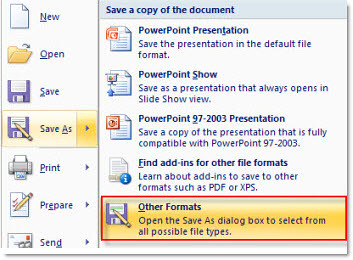
There are a lot of ways to do this. One of them is converting PowerPoint presentations to HTML version. Open your PowerPoint first, and then click Save As in the Office Button. In the drop-down menu of Other Formats, choose Webpage.


Another effective way to do this is to upload your PowerPoint to video sharing websites such as YouTube. For more notes about how to share PowerPoint on YouTube, you can click here.

The next time you want to share your PowerPoint with others, don’t bother too much then. Just take the above suggestions into consideration. And use PowerPoint to boom your sales if necessary.

2009年2月16日星期一

5 Ways to Convert PowerPoint to Video

Benefits of PowerPoint
PowerPoint is a powerful presentation application which is very commonly used by lectures, businessmen, students, trainers, etc. It is easy to use and featured with a lot of functions to create interesting and dynamic slide presentations. This has made it widely accepted and utilized.

Benefits of Video
Video is powerful because it’s demonstrative, clearly depicting procedures, techniques or visual information such as charts and graphs. Most of all, video showcases charisma of live images and animations, allows for transparency and communication skills, which can lead to trust. It is also a good idea to make videos for special occasions as a way of watching them and reminiscing the good times.

Benefits of converting PowerPoint presentations to video
-> Display your presentations in a more vivid way
-> With PowerPoint in video format, it is easy for uploading to blog and websites
-> Even there is no computer, you can also view your presentations
-> Videos can be uploaded to portable devices such as iPhone, iPod and Pocket PC

5 Ways to Convert PowerPoint Presentations to Video (free ways and cost-effective ways)
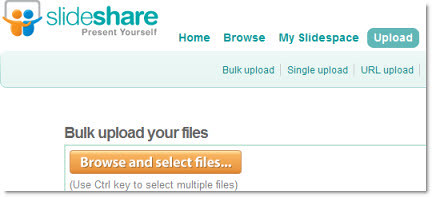
Method 1: Upload your presentations to http://www.slideshare.netwhich is one of the world’s largest communities for sharing presentations. It can generate video for your presentations.
After uploading your presentations onto it, you can directly download the generated video onto your own computer, or embed the video to your blog.

But there are limitations to the presentations uploaded to it. Max size of the presentation is limited to 100MB; animations, video clips and other complex elements couldn’t be added; PowerPoint 2007 is not supported. Sometimes, objects inserted into the presentation may be modified after the uploading.

Some other similar online PowerPoint sharing sites such as http://www.authorstream.com and http://www.slideboom.com/ also support generate video for the presentations uploaded. The advantage is that you don’t need to download any programs onto your computer and they are all free. If your presentation’s size is not too big, and there are only texts and pictures in your presentation, you can have a try at these sites.

Method 2: Use Camtasia which costs $299 to record your presentation and then generate a video
Step1: In the Task List, select Record PowerPoint.
Step2: Open a PowerPoint presentation to record.
Step3: Select the recording options from the PowerPoint Add-in Toolbar. Click the Record button.
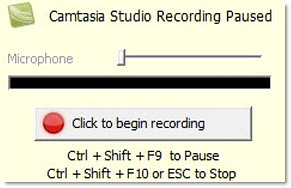
Step4: The presentation opens in presentation mode. A Camtasia Studio dialog opens in the lower right corner of the screen. Click the Click to begin recording button.

Step5: Progress through the PowerPoint presentation slides. To stop the recording before the last slide, press . To stop the recording at the end of the presentation, click Stop recording.
Step6: Enter a file name and location and click Save. The presentation recording saves as a Camtasia Studio recording file.
Advantages with this method: The program can capture slide timing, animations, sound effects, webcam video and any applications displayed on screen during the presentation. You can also record your own narration while the screen-capture process is being carried out.
Disadvantages: This program eats huge system resources. If the configuration of your computer is not so good, animations may become laggy or even lost.

Method 3: Convert PowerPoint presentation to video with Acoolsoft PPT2Video Converter
Step1: Download this PPT2Video Converter and install it on your computer.
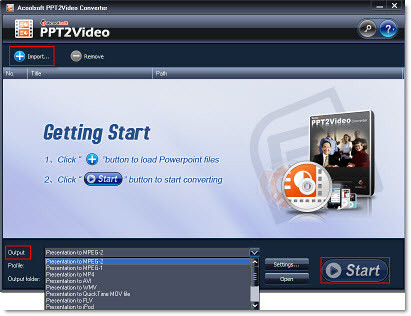
Step2: Launch the program. Click Import button to choose the presentation you want to convert, choose an output format for the video you want to generate. And then click Start button to start the conversion process. (This program can convert presentations to video in MPEG, AVI, MP4, WMV, 3GP, FLV and MOV.)

Step3: Upload the video to blogs or websites such as YouTube.

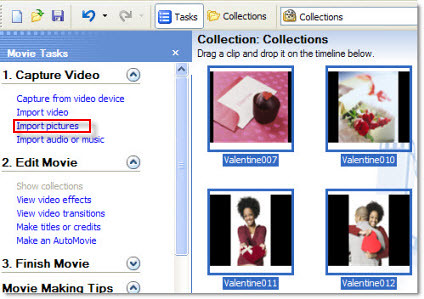
Method 4: Use Windows Movie Maker to create a video for your presentations
Windows Movie Maker comes with all Windows XP and Vista installed computers. With this method, it may time consuming and animations in your presentation would be lost after the conversion.
Step1: Save your PowerPoint slide show as “PNG” images.

Step2: Import the images to your Windows Movie Maker.
Step3: Select all the imported images and then add them to Storyboard.

Step4: Add video effects to the slides (Optional)
Step5: Save the slide show as Movie File.

Method 5: Make a QuickTime movie on Mac
Export your presentation as a QuickTime movie “PowerPoint Movie”. Then you can save your presentations to MOV video file. Way to do this: click File -> Make Movie
But in this way, sounds and animations couldn’t be retained. If you are using keynote, just export your presentation to QuickTime file directly.

Take the advantages of PowerPoint and video. Convert your presentations to video. Share your presentation with more people and create a more convenient way to view your presentations.

2009年2月6日星期五

Valentine Gift Ideas for Your Beloved

Valentine's Day is a holiday celebrated by many lovers all over the world, what you plan to do as the Valentine's Day approaches? Presenting flowers, exchanging confectionery, or sending Valentine's cards? This exceptional day of lovers allows everyone to give out the most fascinating things and speak up the never expressed things. Here are some perfect valentine gift ideas and tips that you can make your beloved happy.


There are plenty of options to choose. But before selecting any gifts for your beloved online, you need to put a lot of creativity, thinking and time. A gift for your beloved should largely depend on the personality of the individual. A Valentine Gift that suits the personality of your beloved will be considered as ideal.
1. Choose chocolates
If you want to make a great impression for your sweetheart on this Valentine, not to mention the feeling of cheerful surprise as your beloved receives this special valentine gift. You can choose heart-shaped chocolate, select a very romantic card and add some sweet message in it, then wrap it up to send to your beloved. This chocolate gift idea for your sweetheart promises to make her love you forever.

2. Choose candy
Surprise your Valentine with a gem of a candy collection or candy gift baskets. Candy gifts come in various types and categories suiting your sweetheart's mood and taste, not to mention affordability because candy would not be too expensive. With the aid of the various candy stores you can also order for various types of decorative candy boxes for your beloved. You can gift your spouse with a special candy bouquet.

3. Choose flowers
The meaning and beauty of flowers has captured our imagination so much that even words cannot match its power when it comes to expressing love. The perfect choice of a Valentine flower is the red roses, distinctly expressing love in its eternal form. The single stem of a rose also called “signature rose” is the most preferred choice of most Valentine lovers. Red, pink and white roses are the most sorts after Valentine Flowers. Red rose symbolizes passion, white purity and the pink rose is a blend of both.
For more flowers information you can browser Proflowers and Flowerpetal

4. Choose jewellery
Jewellery doesn't mean that it has to cost you a lot especially during the period of economic recession. My guess is she must be having many pairs of earrings and chains. So why not gift her something that she might just have one or even none. Select a nice anklet from a nearby jeweler and gift to her as a Valentine gift, you can select from different styles for her. So indulge yourself in this season of love with some great valentine jewellery ideas. Let your sweetheart remember you with this special moment lock inside her heart forever.

5. Record your romantic stories
Valentine's Day is a golden chance of expressing your love to your beloved. You can make up for all the time lost with great romance collage. Considering paper ones are easily damaged, you can create PowerPoint with snaps to cherish the memory of your love of joy. Under each Slide you can write a specific thing about your sweetheart, like "I miss your smile", "I miss you ". It will be a big fortune for you both. Presenting a sincere romance story in such a way could be an ideal Valentine's Day gift idea even if valentine flowers are not attached with it. For long-time preserve you can convert the PowerPoint to video or DVD instead papers. Here is a sample from YouTube http://www.youtube.com/watch?v=IbrOSNsNUWo . Want to know how to do it? You can click here. Here are also some free PowerPoint templates.
Below is a DVD Menu of the tool.

These are just part of my ideas, do you have any more? Please show it to your sweetheart this Valentine's Day.

2009年2月5日星期四

Free Valentine's Day PowerPoint Templates

Here are some free PowerPoint templates for Valentine's day:


For more free ones, you can Click Here.